Two-Factor Authentication, commonly referred to as 2FA, provides an added measure of security to your account. It ensures that you, and only you, have the power to access your account by utilizing an authentication code produced by your mobile device.
Once 2FA is activated on your account, you'll be prompted to input a unique, time-sensitive code every time you sign in or initiate withdrawals.
1. Get the Google Authenticator App
- For iOS users: Navigate to the App Store, search for Google Authenticator.
- For Android users: Head to Google Play, type in Google Authenticator in the search bar.
2. Steps to Activate 2FA via Website
- Login to your Freedx Account.
- Click on Profile in the top right corner of the homepage, and choose Security.
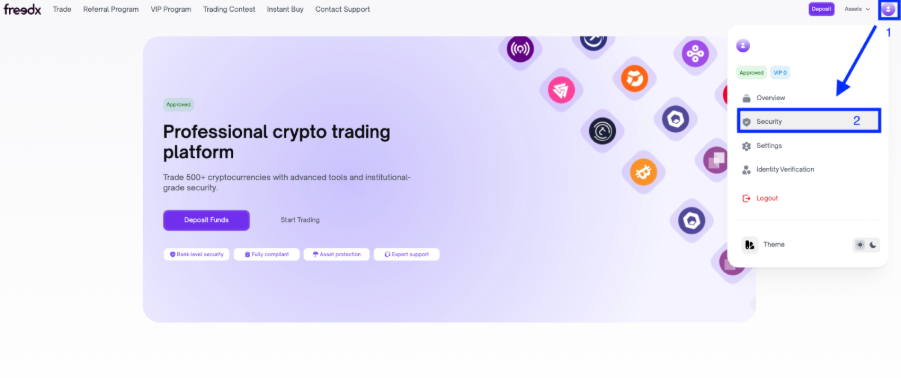
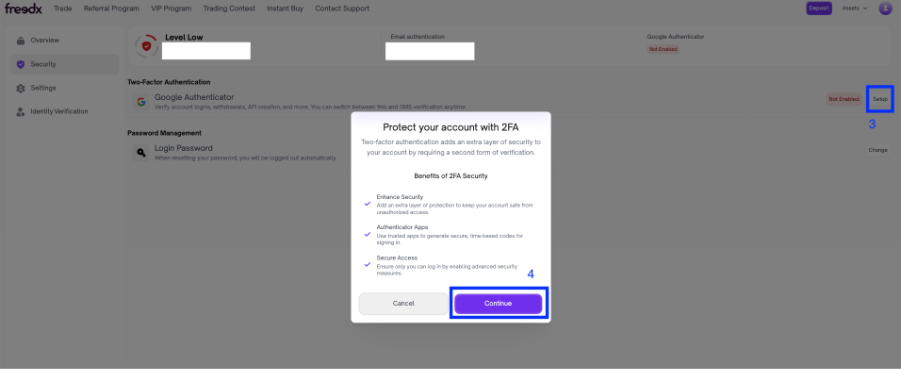
- In Security page, click on Setup on Google Authenticator.
- Tap the Continue button.
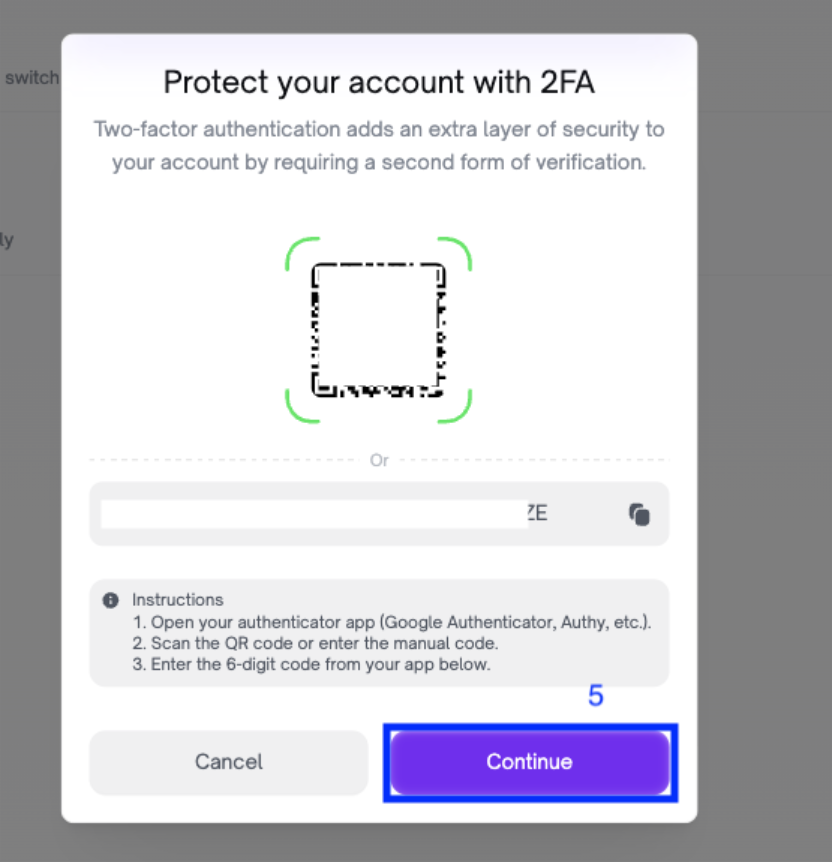
- Launch the Google Authenticator app and scan the QR code (or enter the manual code) to connect it to your Freedx account.
- Tap the Continue button.
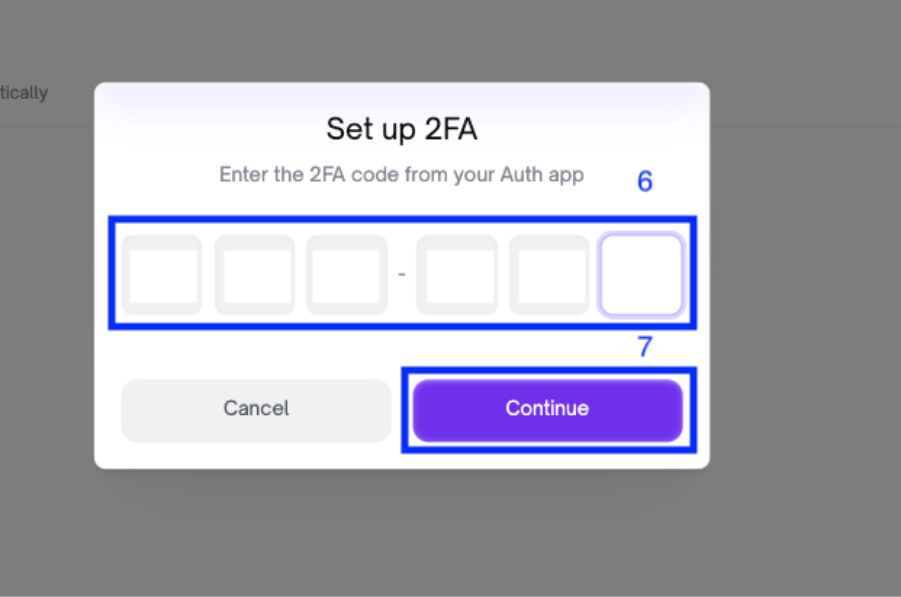
- Get the 6-digit code from your Authenticator app and enter to the box.
- Tap the Continue button.
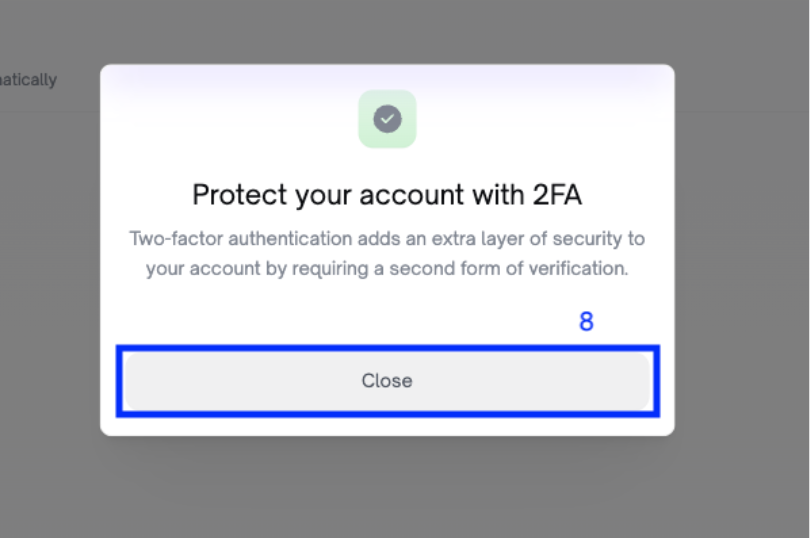
- Complete your process and click Close.
3. Steps to Activate 2FA via Mobile App
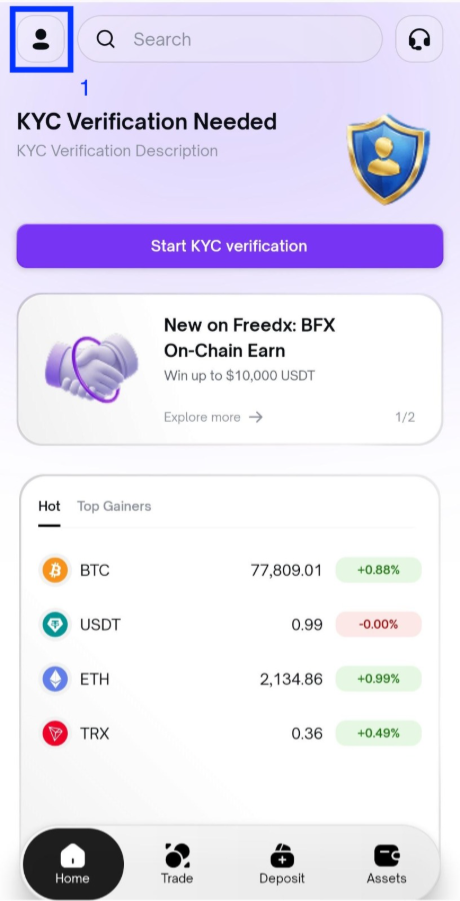
- Login to your account and choose your profile.
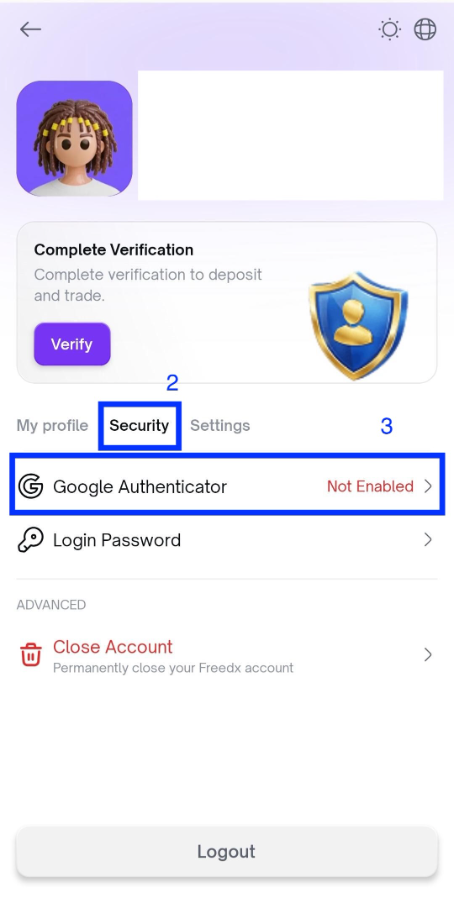
- On your profile, choose Security, and click on Google Authenticator
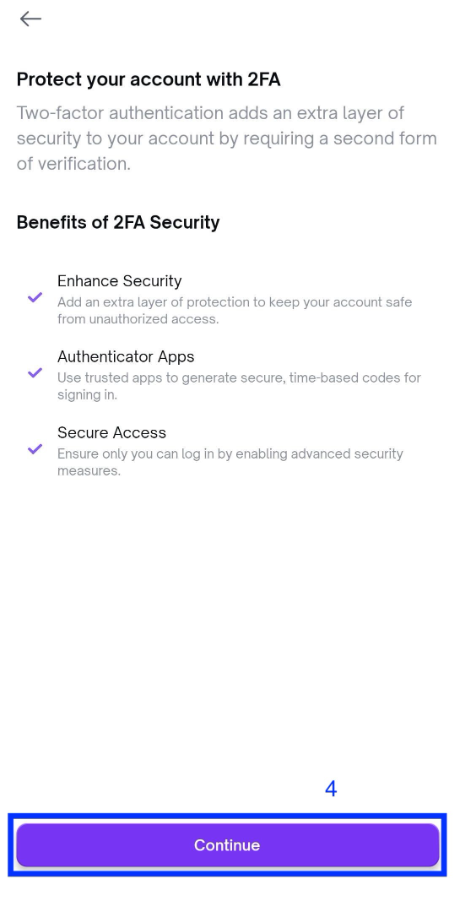
- Click Continue
- Launch the Google Authenticator app and scan the QR code (or enter the manual code) to connect it to your Freedx account.
- Tap the Continue button.
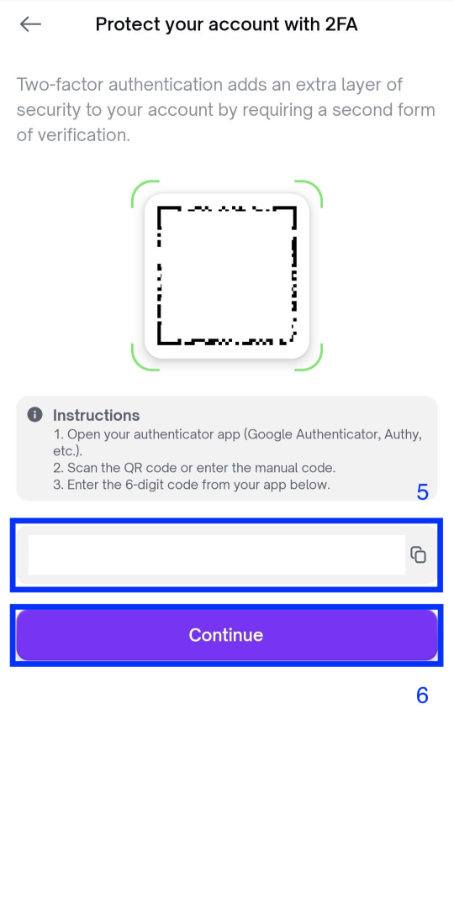
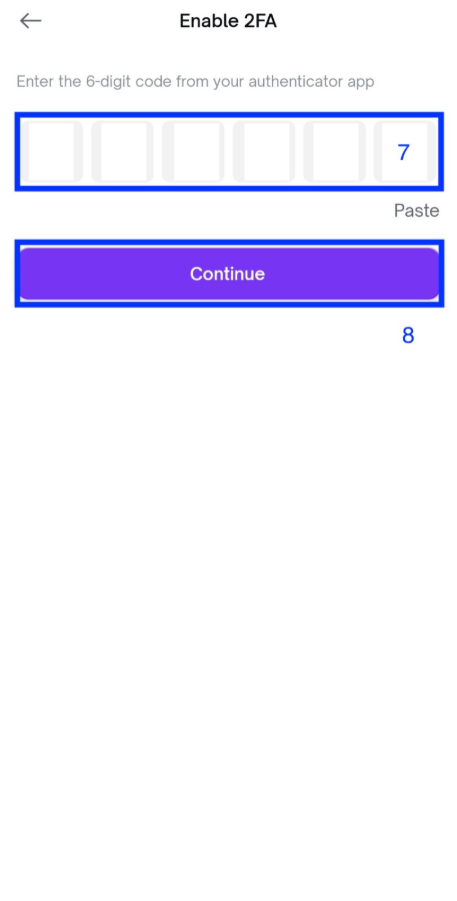
- Get the 6-digit code from your Authenticator app and enter to the box.
- Tap the Continue button.
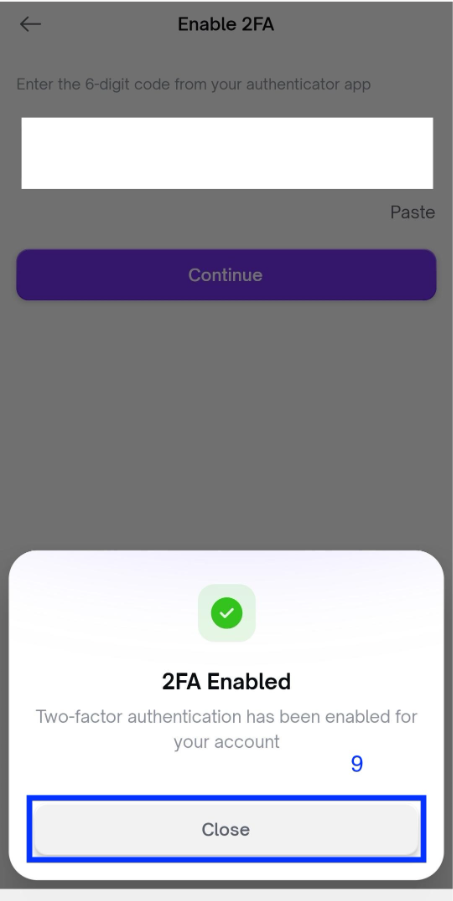
- Complete your process and click Close.
Was this article helpful?
That’s Great!
Thank you for your feedback
Sorry! We couldn't be helpful
Thank you for your feedback
Feedback sent
We appreciate your effort and will try to fix the article