This article explains how to disable Two-Factor Authentication (2FA). 2FA adds an extra layer of security by requiring a code generated on your mobile device. Once enabled, you need this time-sensitive code each time you log in or make a withdrawal.
How to Disable 2FA on Web
- Log in to your account.
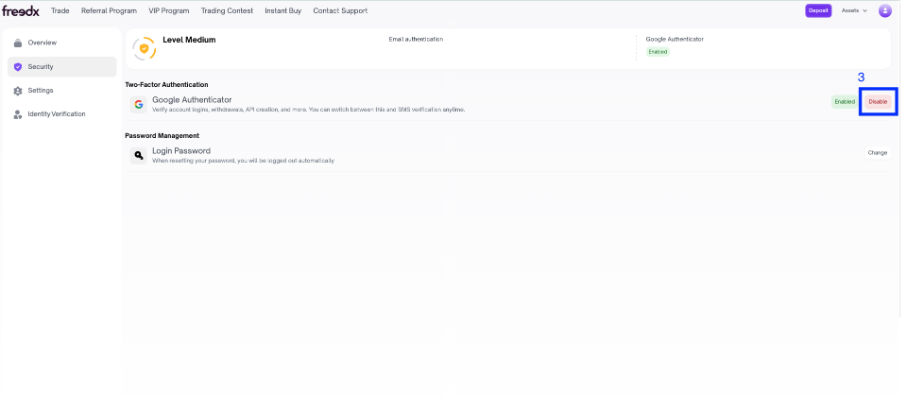
- Navigate to the Security tab.

- Find Two-Factor Authentication (2FA) and click Disable.
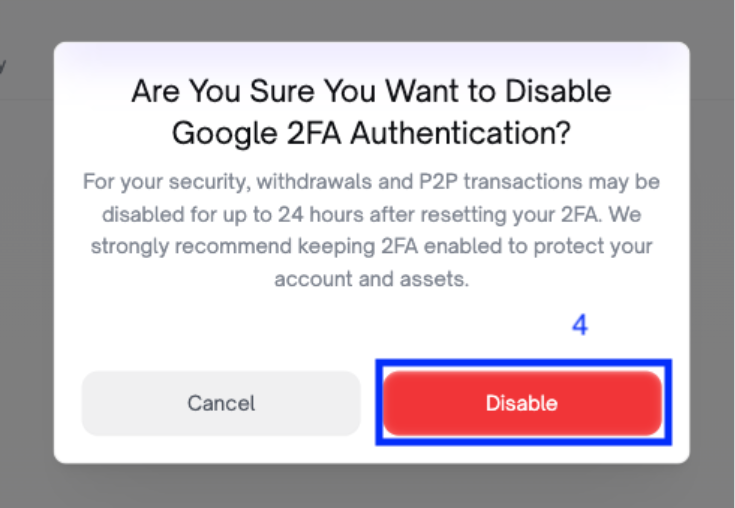
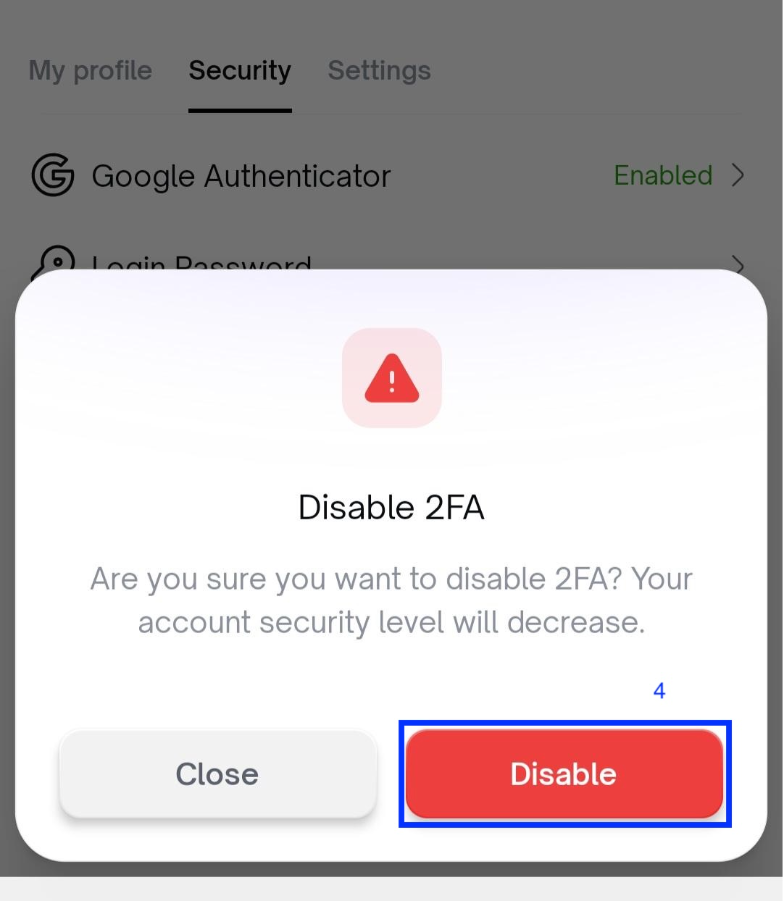
- Be aware of what will happen when you disable 2FA, then click Disable.
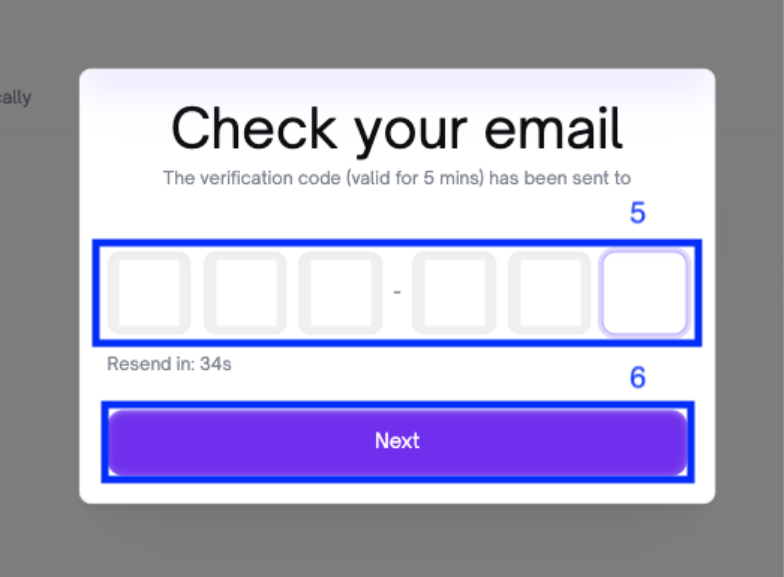
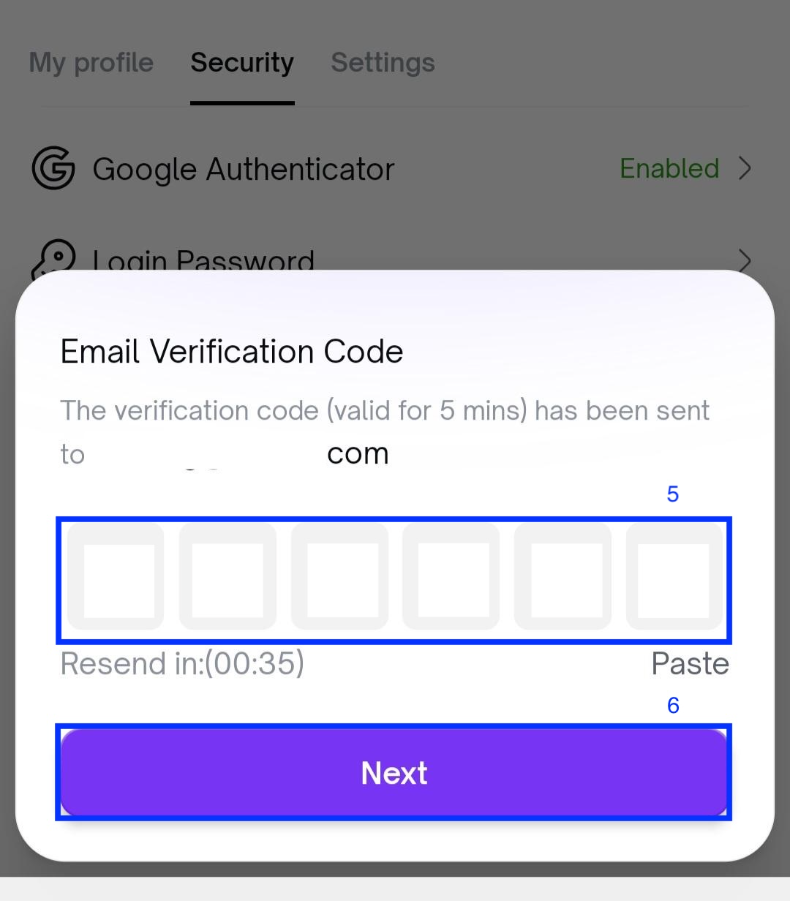
- A verification code will be sent to your email, check your inbox and enter the code in the required field.
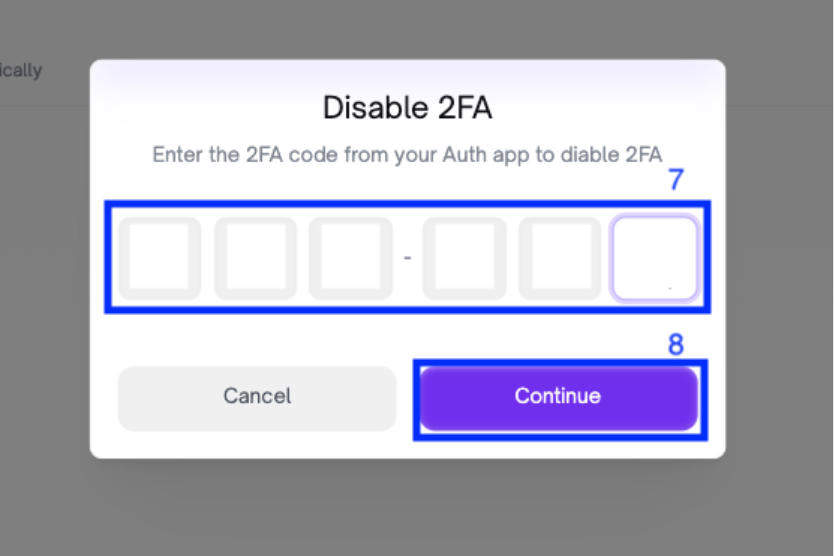
- Enter the 2FA code from your authentication app.
- Click Continue.
- Done, your 2FA has now been disabled!
How to Disable 2FA on the Mobile App
- Login to your account and choose your profile.

- On your profile, choose Security, and click on Google Authenticator.
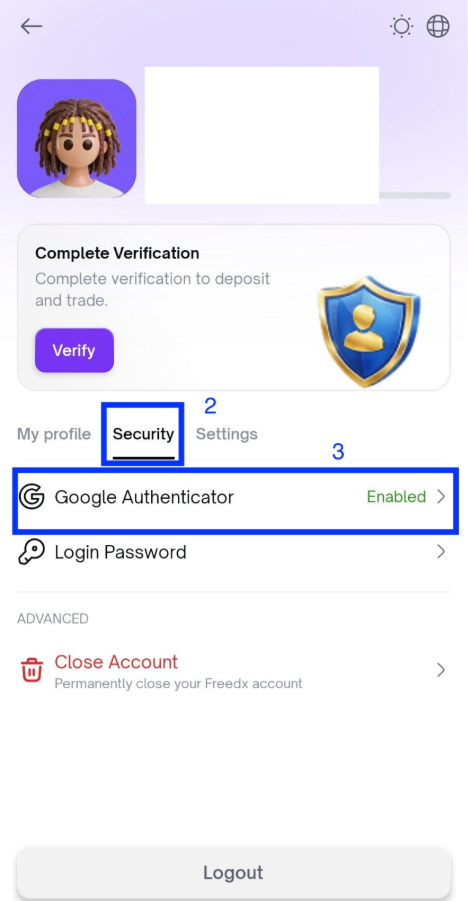
- Click Disable.
- Enter your email verification code.
- Enter your 2FA code.
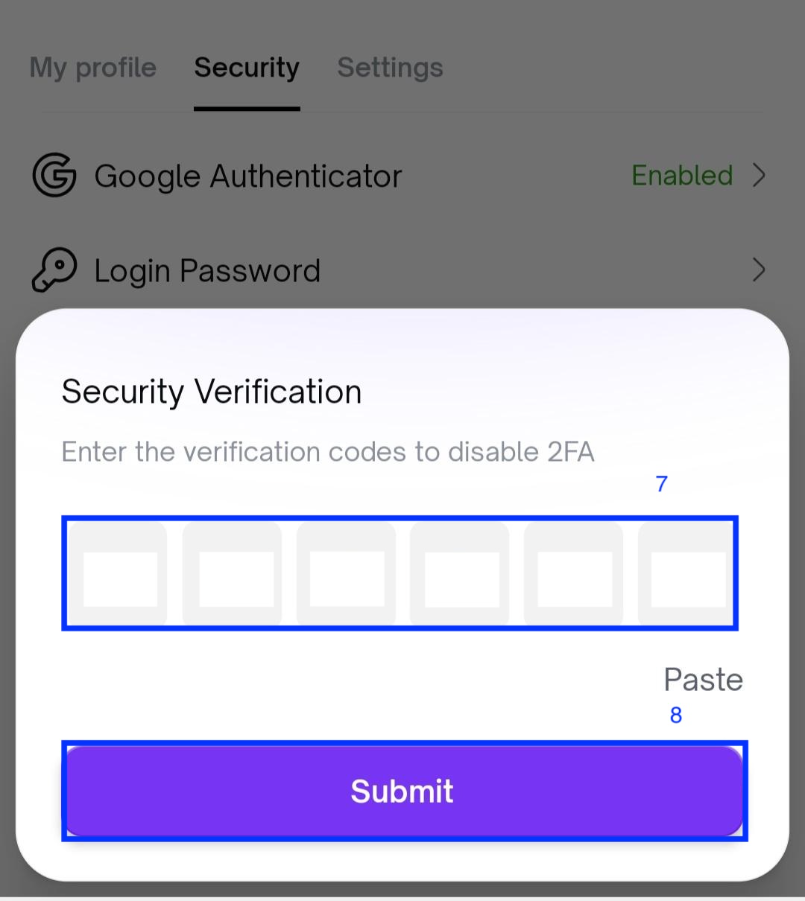
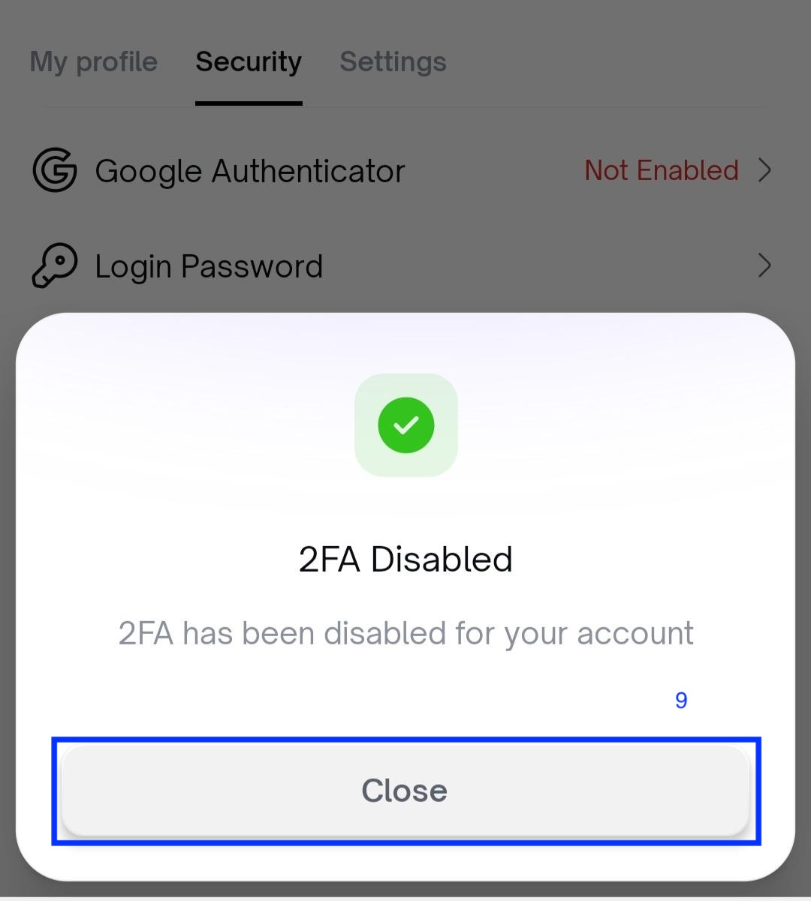
- Complete the process and click Close.
Important Note:
For your security, withdrawals and P2P transactions may be disabled for up to 24 hours after resetting your 2FA. We strongly recommend keeping 2FA enabled to protect your account and assets.
Was this article helpful?
That’s Great!
Thank you for your feedback
Sorry! We couldn't be helpful
Thank you for your feedback
Feedback sent
We appreciate your effort and will try to fix the article