Freedx’s identity verification process (Know-Your-Customer, or KYC) ensures compliance with AML laws, builds user trust, and enables access to all platform features, and promotions.
This guide will walk you through the verification process on the website, and the mobile app.
Preparation
Before starting the KYC verification, please ensure you have the following documents ready to ensure a smooth and efficient experience.
- ID Card
- Driver's License
- Passport
- Residence Permit
- Or any other Government-Issued ID
The formats accepted are:
- JPEG
- PNG
To better make sure the document captures are accepted, follow the tips below:
- Place the document on a neutral-colored background.
- Ensure the image is clear and fully visible.
- Avoid placing the document on a glass surface when taking the photo.
- Make sure there are no reflections or shadows on the document.
- Use good lighting to enhance visibility.
- Make sure you are not using VPN.
- Information in the photo ID should be clear, in focus, not covered and not modified/tampered.
Verification Process on the Website
Step 1:
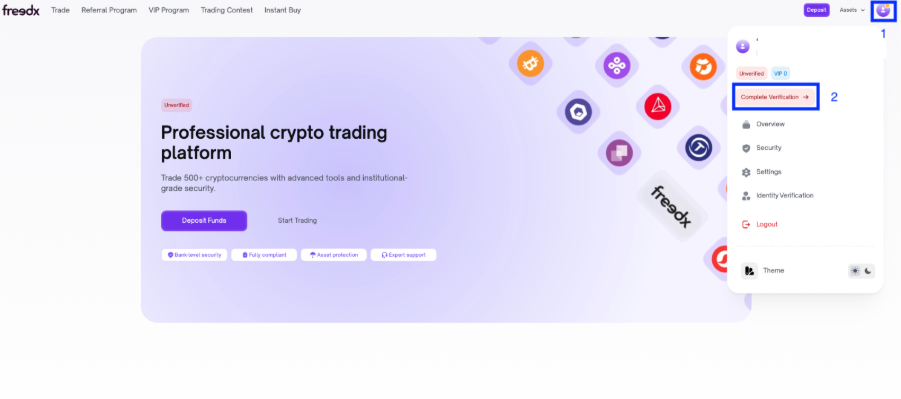
After logging in to your Freedx account, click on Profile on the top right corner of the home page, then choose Complete Verification.
Step 2:
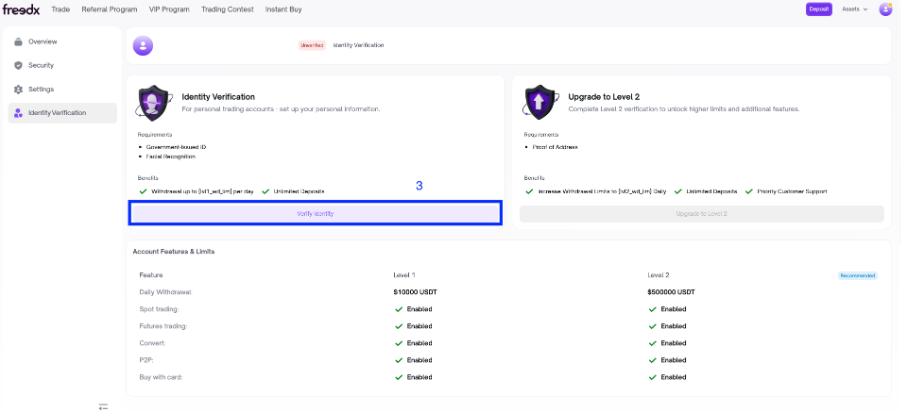
In the Identity Verification Page, click on Verify Identity.
Step 3:
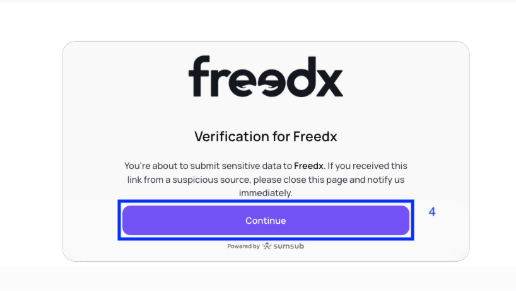
Click Continue.
Step 4:
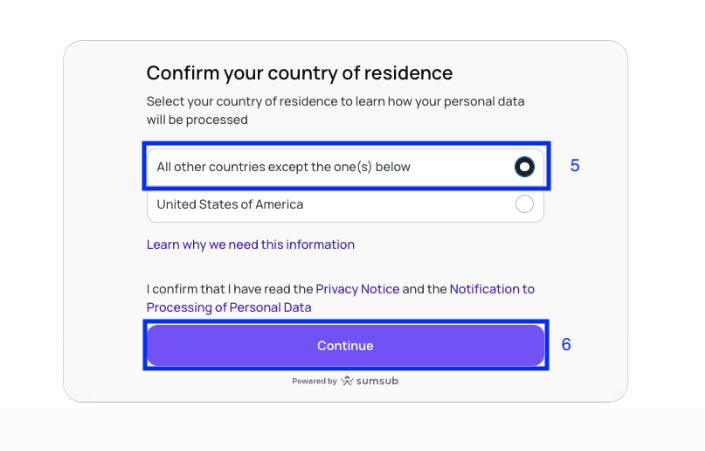
- In Confirm your country of residence page, choose All other countries except the one(s) below.
- Click Continue.
Important Note:
Since USA is a restricted country on Freedx, if you choose the option United States of America, you won't be able to verify your account.
Step 5:
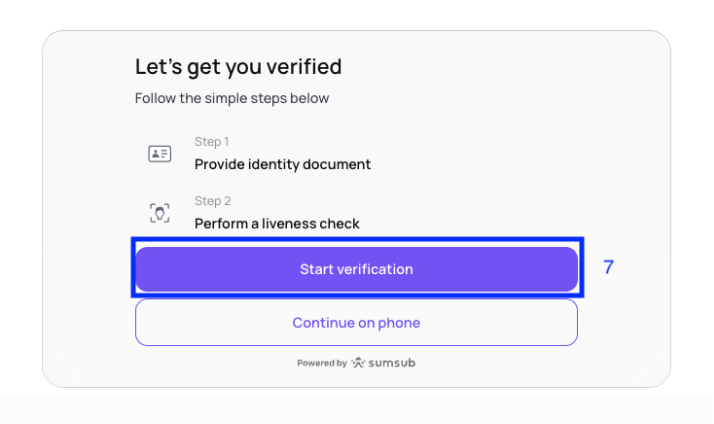
- Click on Start Verification.
- Follow the guide and requirements of each screen to complete uploading document and your liveness check.
- If your PC doesn't have a camera, please choose Continue on phone to complete the process on your phone.
Step 6:
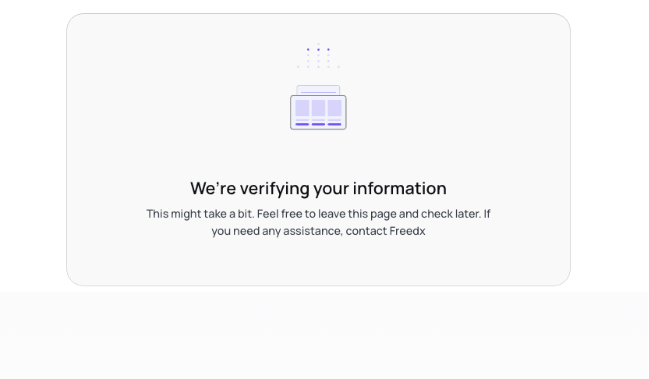
Complete your process and wait for the result.
Verification Process on the App
Step 1:
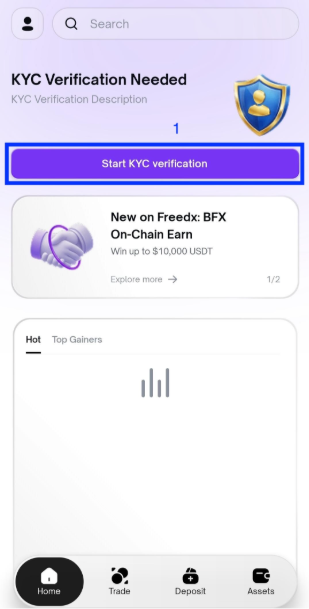
After logging in to your account, click on Start KYC Verification on the homepage.
Step 2:
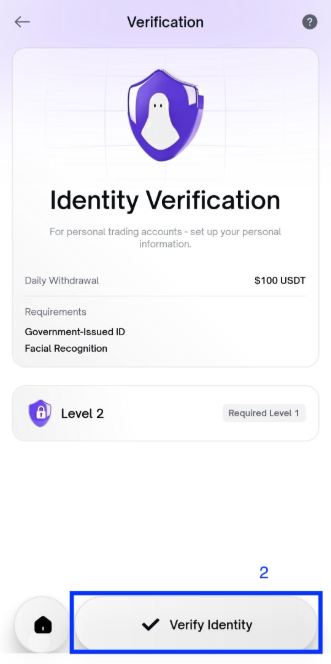
In the Identity Verification page, click on Verify Identity at the bottom of the screen.
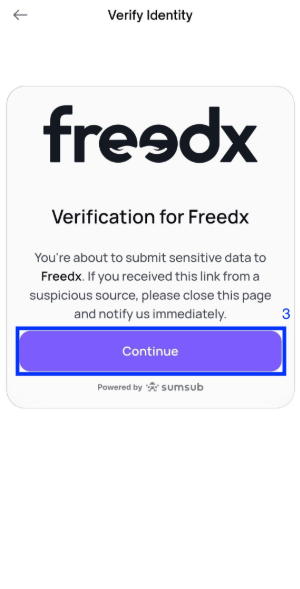
Step 3:
Click on Continue.
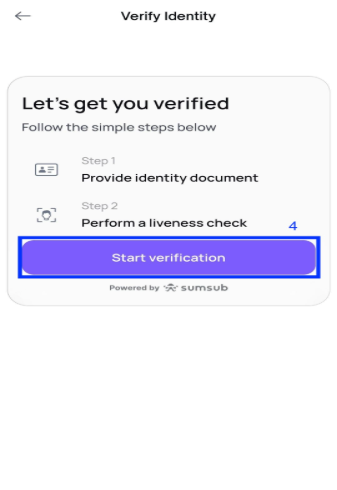
Step 4:
Click on Start verification.
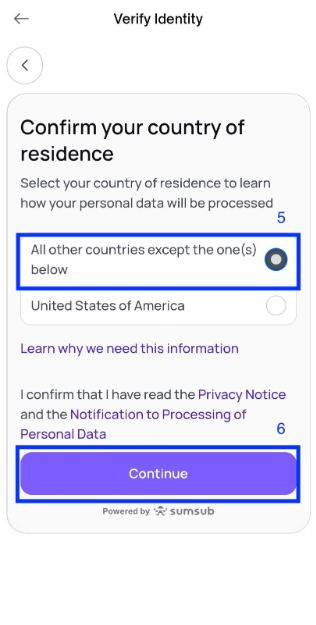
Step 5:
- In Confirm your country of residence page, choose All other countries except the one(s) below.
- Click Continue.
Important Note:
Since USA is a restricted country on Freedx, if you choose the option United States of America, you won't be able to verify your account.
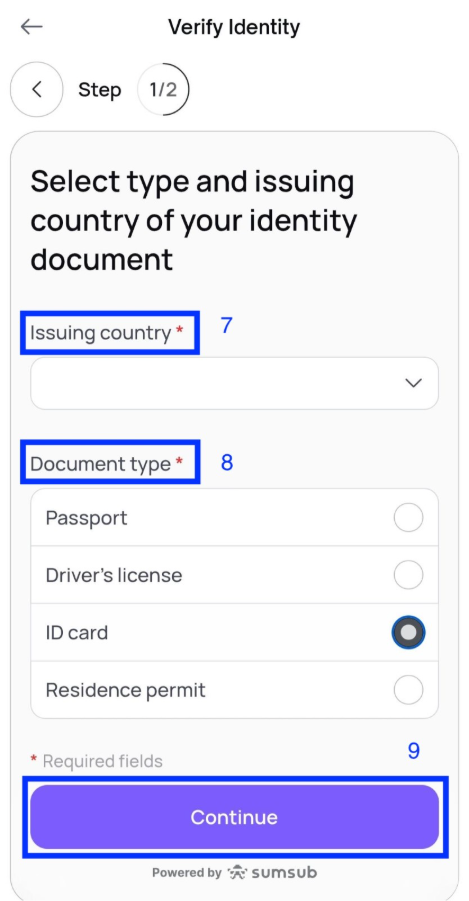
Step 6:
- Select type and issuing country of your identity document.
- Click Continue.
- And then follow the guide and requirements of each screen to complete uploading document and your liveness check.
Step 7:
Complete your process and wait for the result.
How long does the verification process take?
Freedx uses a combination of AI and manual verification methods to improve accuracy and speed. Submitted verification documents are usually reviewed within 48 hours. However, it may take longer in some cases.
Follow the steps below in case your KYC verification fails:
Click on Try Again in Identity Verification page of your profile in order to be able to do the KYC verification again.
What should I do if I encounter an error while trying to complete the verification again?
If you experience an error during the re-verification process, we recommend checking your email inbox. You should have received an email notifying you that your verification was rejected. That message includes a link you can use to retry the verification.
If you don’t see a Try Again link in your email or cannot try again in your Verification page, please contact our Customer Service team for further assistance.
Important Note:
In some cases, our Compliance Team may require additional documents or information to complete the process. Should this occur, we will contact you via email (support@freedx.com).
Was this article helpful?
That’s Great!
Thank you for your feedback
Sorry! We couldn't be helpful
Thank you for your feedback
Feedback sent
We appreciate your effort and will try to fix the article