A. On Website
1. How to change password
- Login to your Freedx account.
- Go to Profile (Top right corner).
- Choose Security.
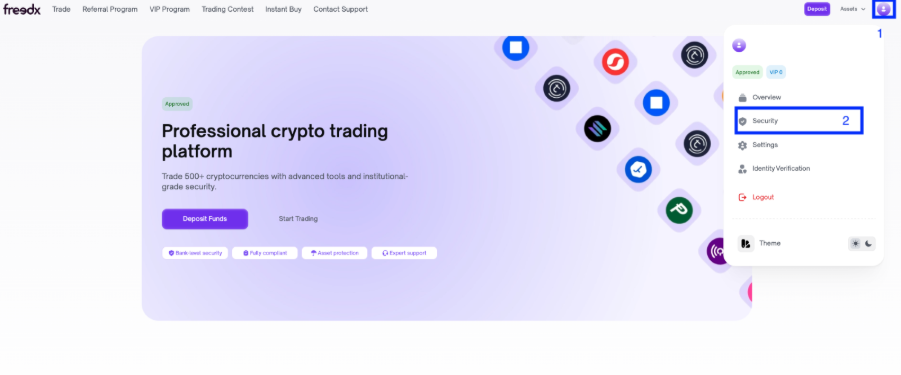
- Find the Login Password option and click Change.
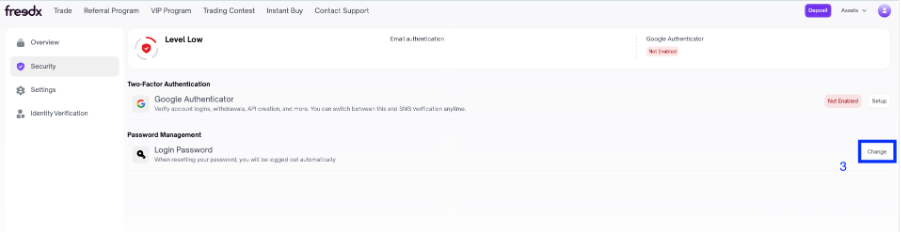
- Get the verification code from your registered email and enter to the box.
- Click Next.
- Enter 2FA code as well if you turn on 2FA for your account.
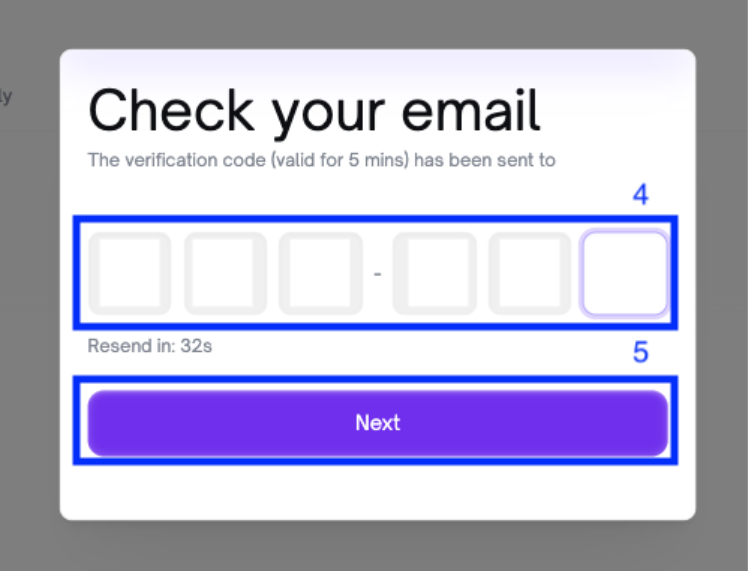
- Create new password that meets all requirements then confirm it again.
- Click Next.
- You change your password successfully.
- You will be logged out of your account automatically. Please login with your new password.
2. When you forgot password
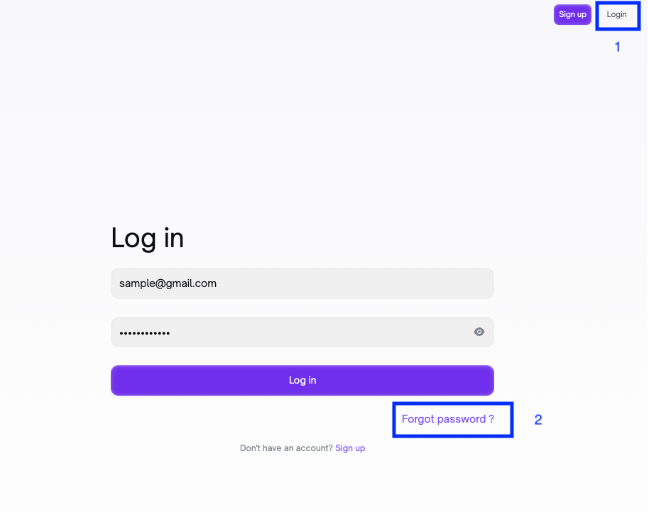
- On the homepage of Freedx, choose Login.
- Click on Forgot Password?
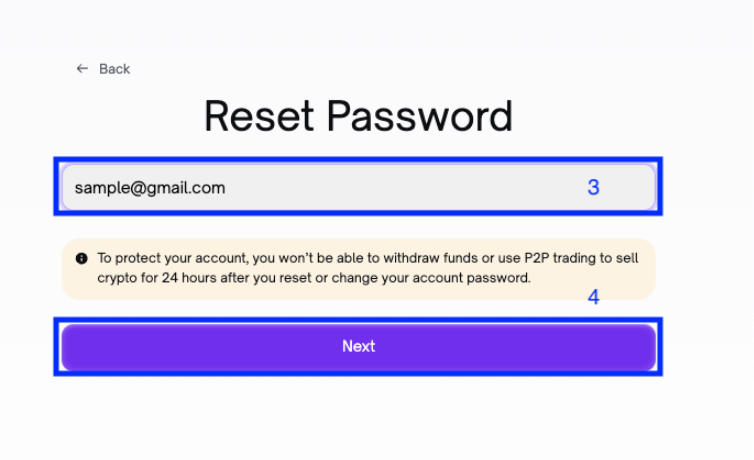
- Enter your registered email and click Next.
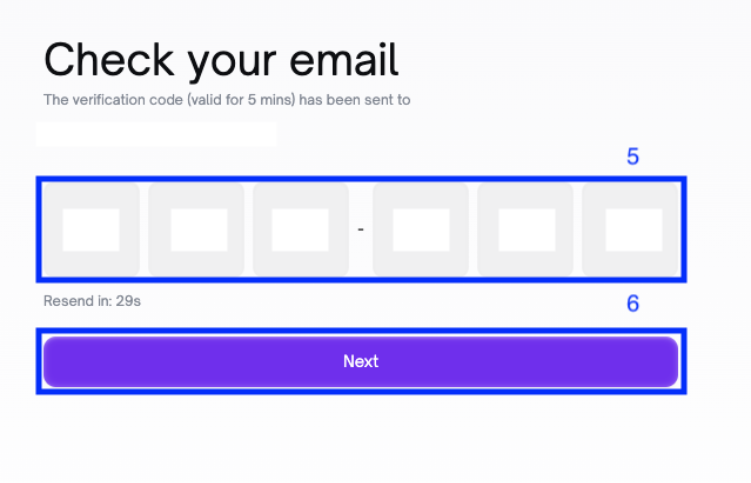
- Check your registered email to get the verification code and enter to the box.
- Click Next.
- You need to enter 2FA code if you enable your 2FA.
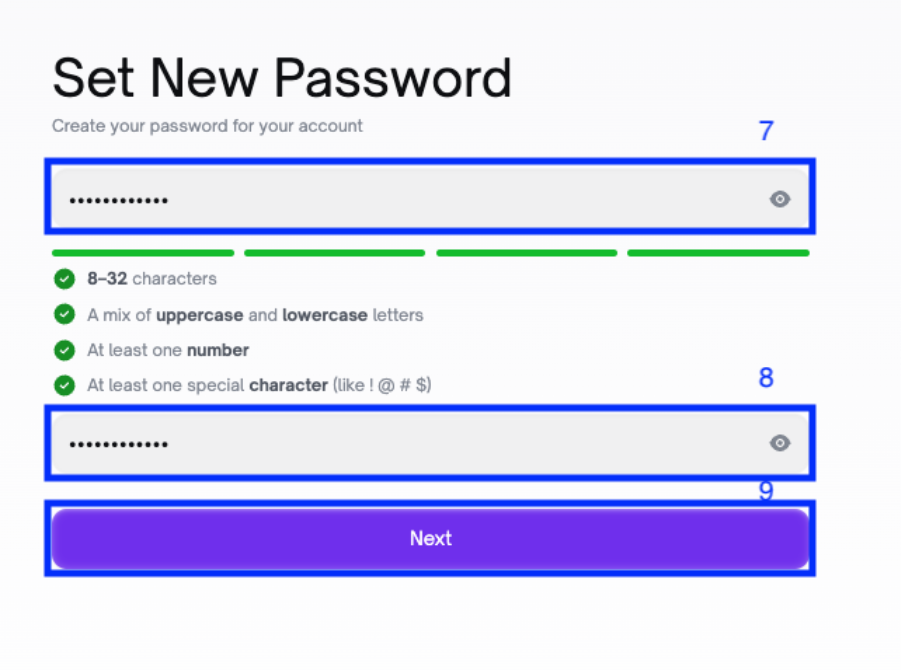
- Create new password that meets all requirements then confirm it again.
- Click Next.
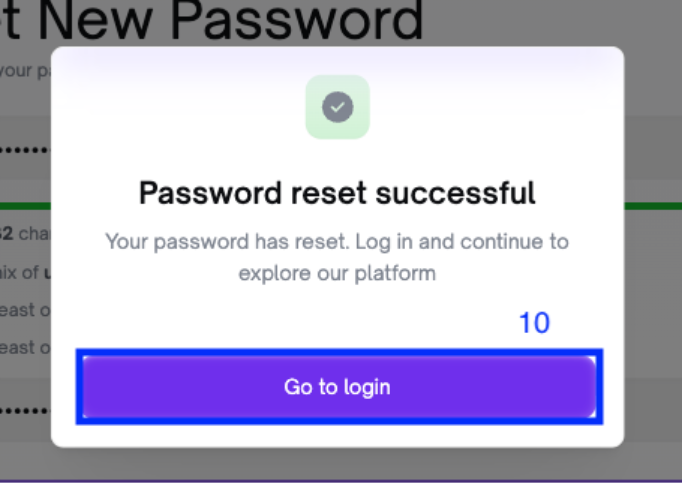
- You change your password successfully.
- Click Go to login to login to your account with the new password.
B. On Mobile App
1. How to change password
- Run the app and navigate to your Account.
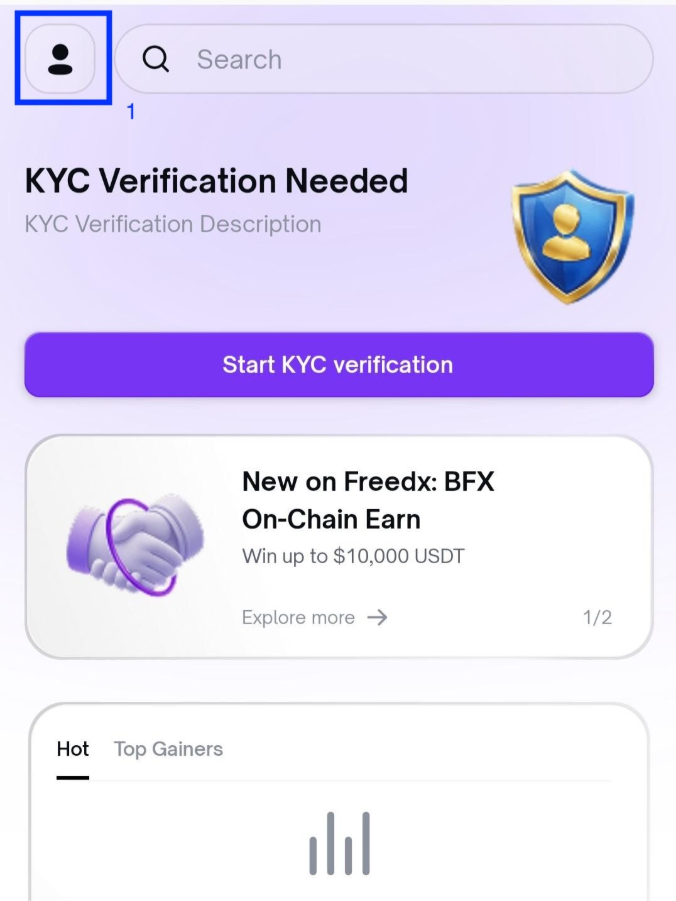
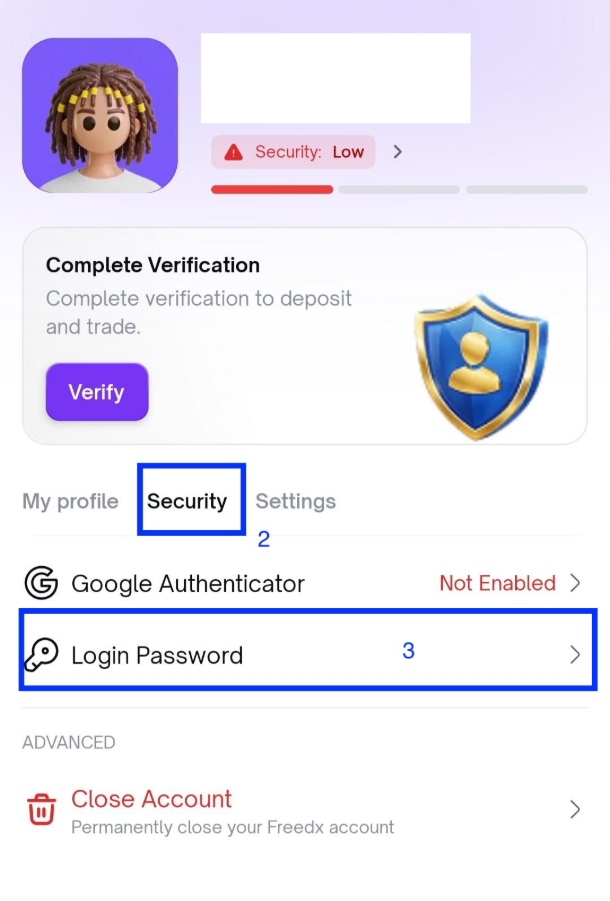
- Choose Security tab and tap on Login Password.
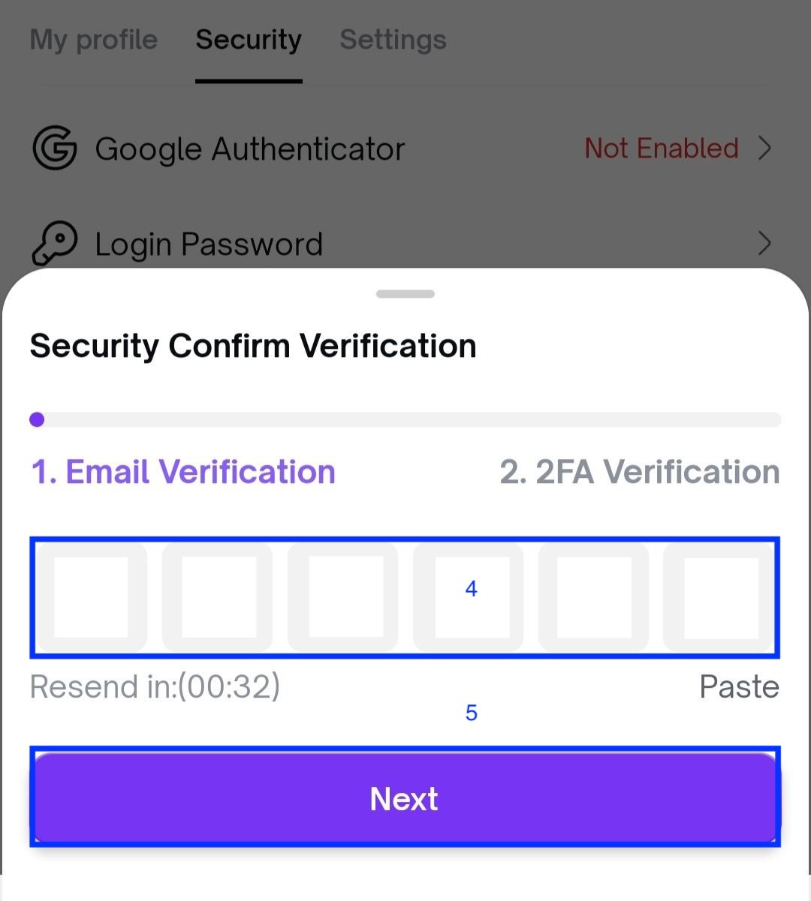
- Check your registered email to get the verification code and enter to the box.
- You have to enter 2FA code as well if you enable 2FA.
- Click Next.
- Create new password that meets all requirements then confirm it again.
- Click Next.
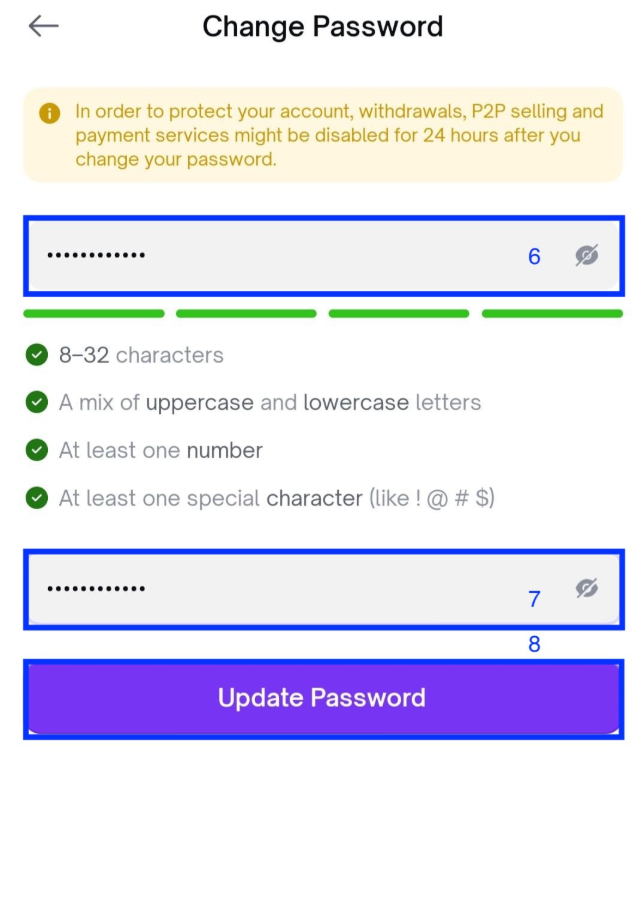
- You change your password successfully.
2. When you forgot password
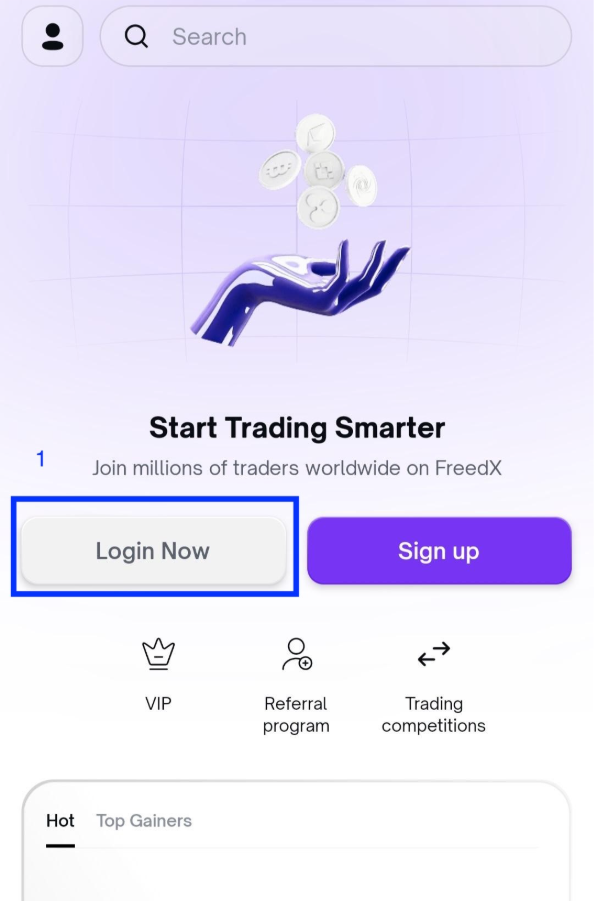
- Run the app and click on Login Now.
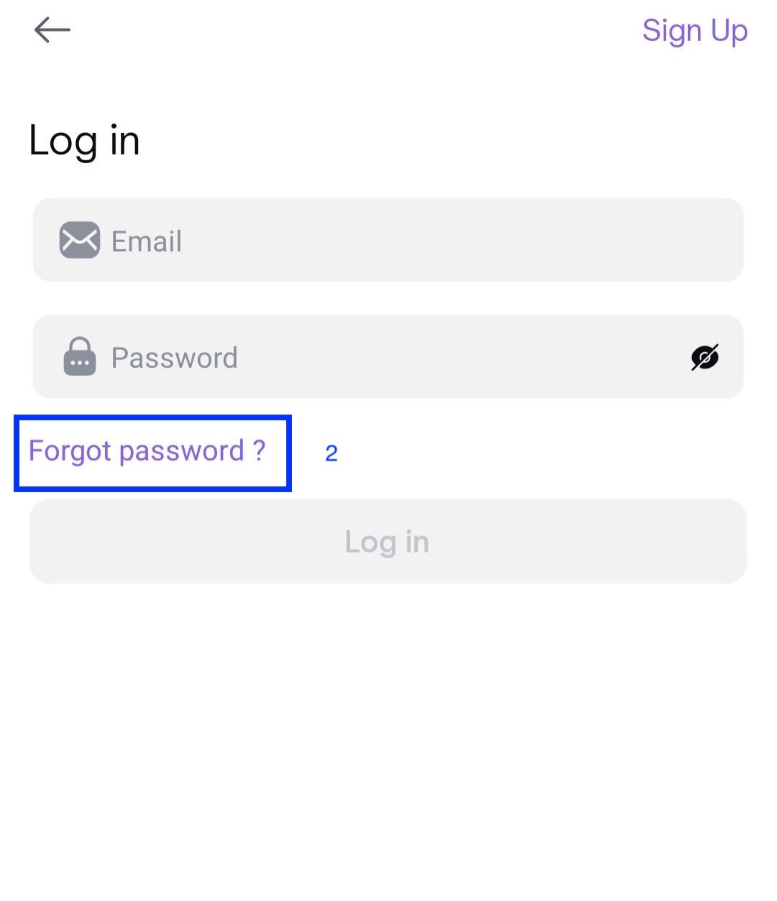
- In the Login screen, choose Forgot password?
- Enter your registered email and click Next.
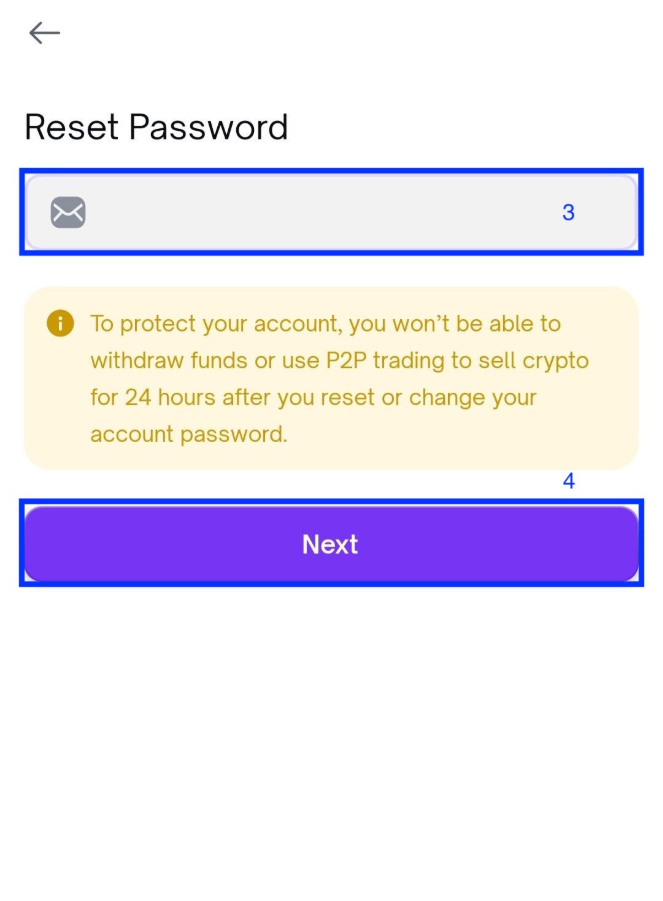
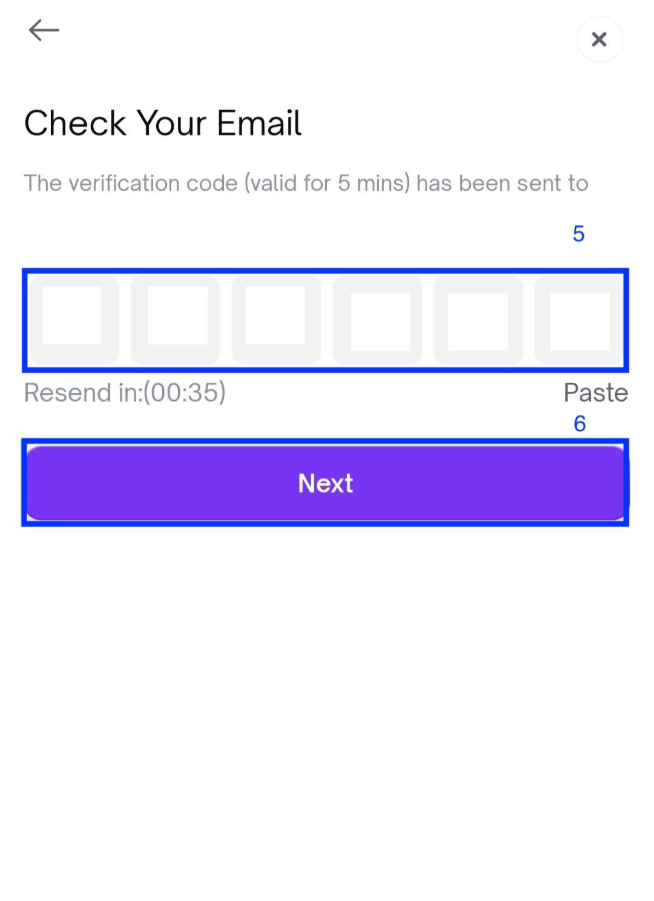
- Check your registered email to get verification code.
- Enter the code to the box and click Next.
- You also need to enter 2FA code if you enable 2FA.
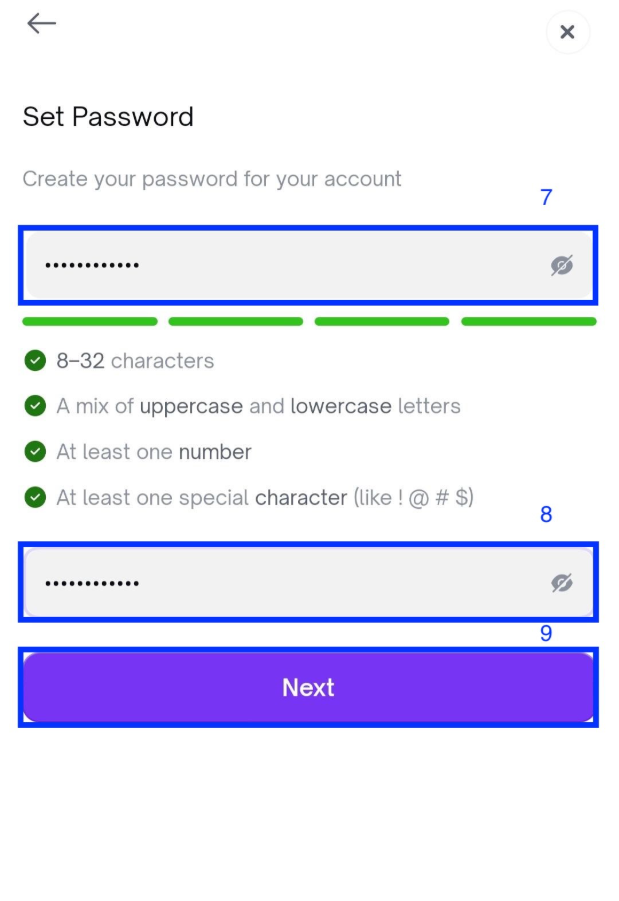
- Create new password that meets all requirements then confirm it again.
- Click Next.
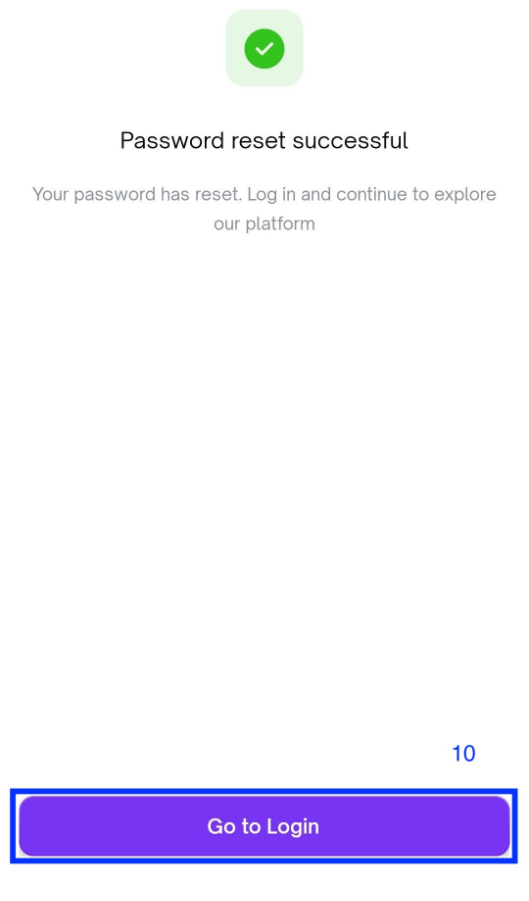
- You change your password successfully.
- Click Go to login to login to your account with the new password.
Important Note:
For your security, withdrawals, P2P transactions and payment methods may be disabled for up to 24 hours after you reset or change your account password.
Was this article helpful?
That’s Great!
Thank you for your feedback
Sorry! We couldn't be helpful
Thank you for your feedback
Feedback sent
We appreciate your effort and will try to fix the article